Caffeinated Bitstream

Bits, bytes, and words.

Mac

I'm trying out Ubuntu 11.10 (Oneiric Ocelot) on a PC with a Mac keyboard attached. I made a few hacks to make the keyboard work smoothly and in a (very roughly) Mac-like fashion. I figured I'd make a few notes here for my own future reference. (Note: I'm using a U.S. keyboard. If you are using a different kind of keyboard, your mileage may vary.)

Goals

  1. Make the function keys (F1..F12) work as function keys without needing to hold down the Fn key.
  2. Use Mac-like keyboard shortcuts for window navigation (Cmd-Tab, Cmd-`) and the terminal (Cmd-C for copy, Cmd-V for paste).
  3. Avoid stepping on Unity's use of the Super key (i.e. the command key on Macs and the Windows key on PC keyboards).
  4. Use the legacy Caps Lock key for something useful.

The plan

  1. Change a driver parameter to enable use of the function keys without holding down the Fn key.
  2. By default, the keyboard's left and right command keys are mapped to Super_L and Super_R. Map these instead to the seldom-used Hyper_L and Hyper_R keysyms. (If you try to use the Super keys for shortcuts, the Unity dock will appear every time you hold down the command key. It's really annoying.)
  3. Map the Caps Lock key to Super_L so it can be used for certain Unity shortcuts.

Making function keys work

Create a file in /etc/modprobe.d which sets the fnmode parameter of the hid_apple driver to 2 = fkeysfirst:


Rapid DHCP Redux

I was surprised at the amount of attention attracted by my recent post,"Rapid DHCP: Or, how do Macs get on the network so fast?". Between the 27 comments on my post and the 180 comments on Hacker News, a lot of interesting insights surfaced about the Mac's approach to DHCP. Information that would have taken me a week or two to research arrived within hours from people with experience in these matters. Here are some of the highlights:


One of life's minor annoyances is having to wait on my devices to connect to the network after I wake them from sleep. All too often, I'll open the lid on my EeePC netbook, enter a web address, and get the dreaded "This webpage is not available" message because the machine is still working on connecting to my Wi-Fi network. On some occasions, I have to twiddle my thumbs for as long as 10-15 seconds before the network is ready to be used. The frustrating thing is that I know it doesn't have to be this way. I know this because I have a Mac. When I open the lid of my MacBook Pro, it connects to the network nearly instantaneously. In fact, no matter how fast I am, the network comes up before I can even try to load a web page. My curiosity got the better of me, and I set out to investigate how Macs are able to connect to the network so quickly, and how the network connect time in other operating systems could be improved.


Customizing the Mac Dashboard calendar widget

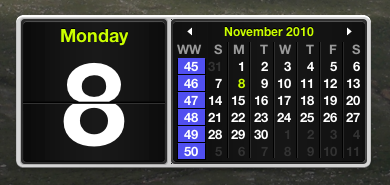
It turns out that it's not too hard to customize the dashboard widgets that come with Mac OS X, since they're implemented in HTML and Javascript. You can just copy the stock widget from /Library/Widgets to ~/Library/Widgets and go to town. In the above picture, you can see how I've hacked the calendar widget to show week numbers.

Update, April 7, 2011: Due to popular demand, I've posted a diff of my changes here, based on the Snow Leopard calendar. Copy the calendar widget into your home directory (~/Library/Widgets) and rename it to wwCal.wdgt.